So you read about orchestrating a fleet of AI agents instead of babysitting one, you nodded along, and then came the obvious question: okay, but how do I actually set this up?
Fair. Talking about boards and lanes and durable state is nice, but at some point you want the thing running in your own project. So this one is not a "why" article. This is the hands-on walkthrough. By the end you'll have Sightdeck AI wired into a real repo, with a live board watching your tasks and the AI keeping it up to date on its own.
If you know me, then you know I'm a huge fan of plug'n'play setups. And the good thing is, this one is exactly that. There's no database, no cloud account, no config marathon. A desktop app and a little skill for your agent, and you're off.
The Problem
Most AI setups have no memory of themselves.
You open a terminal, start a session, give the agent a task. It works, it's great, and then the window closes and the plan in its head is gone. Open a second terminal for something in parallel, and now neither session knows the other exists. There's no shared answer to the only question that actually matters during a busy day: what's running, what's waiting on me, and what's already done?
So you become the glue. The dispatcher, the memory, and the status board, all at once. That works for one task. It falls apart the moment you have five.
The Goal
What we want by the end of this article is small to describe:
- A desktop board that always shows the true state of every task
- An AI that keeps that board updated itself, at every step, without me reminding it
- A setup that survives a closed window, a crash, or a fresh session tomorrow
In other words, we want to stop being the human memory bank and let the board do that job. Let's build it.
The Solution
The idea behind Sightdeck AI is almost boringly simple, and that's exactly why it works.
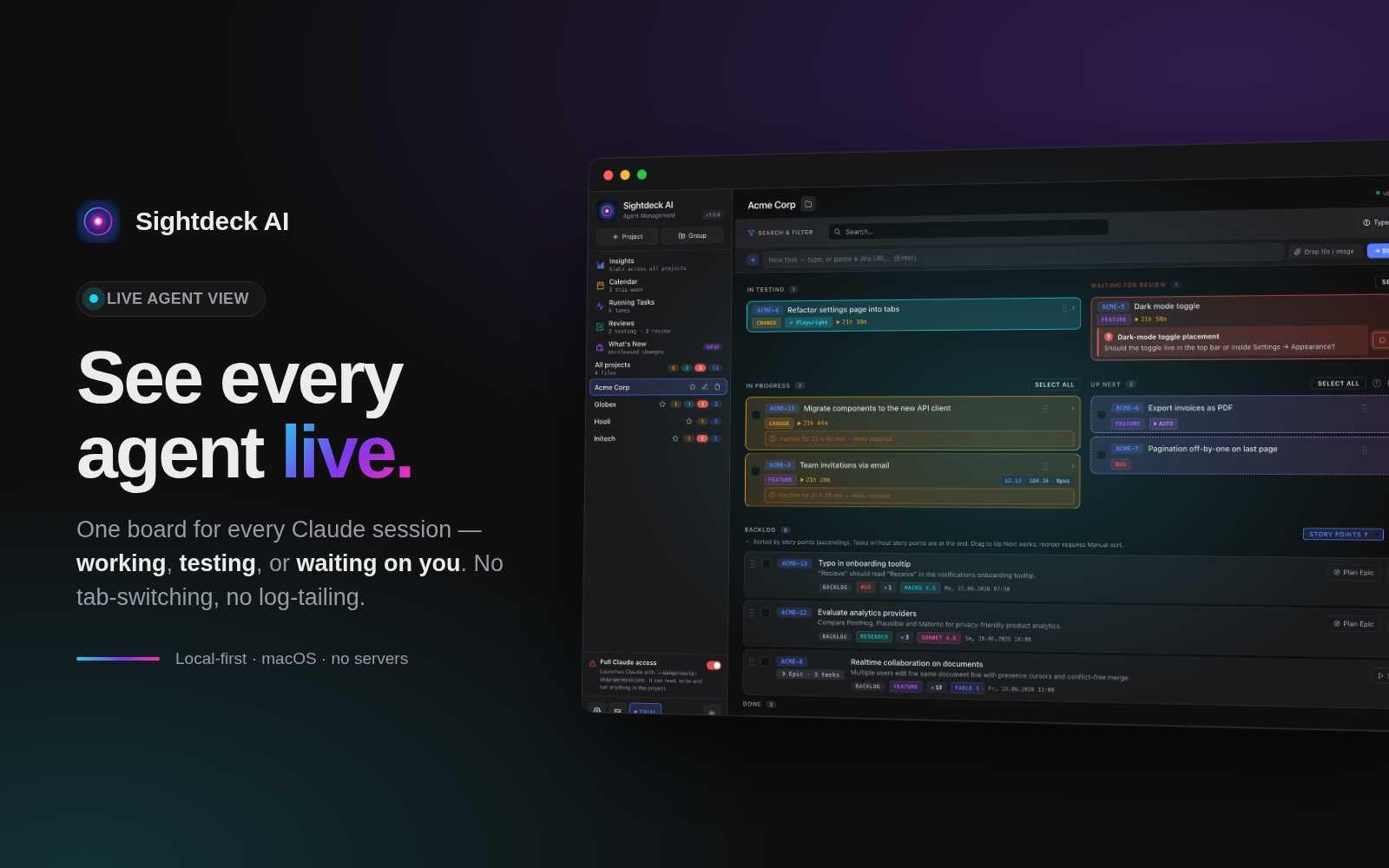
Every task you give the AI gets a card on a board. The AI moves that card as the work progresses, and a desktop app shows you the board live. Under the hood it's all stored as a plain file inside your project, so the state survives a crash, travels with your repo, and is never trapped in a chat window again. But you don't have to care about that part. You just watch the board.
The chat is where the work happens. The board is where the work lives.
Let me walk you through how it fits together.
1. Install the Sightdeck AI desktop app
First, grab the desktop app from https://sightdeck.app and start it. This is your window into the board.
The app starts and orchestrates everything: it kicks off your agents, runs them through the board, and chains one task into the next. And the skill works autonomously, reporting its own feedback and status updates back to the board as it goes. On top of that, the current state always lives in your project, so the app can crash, restart, or sit in the background for a week, and the truth is still safe.
2. Add the Sightdeck AI skill to your agent
The app shows the board. The skill is what makes the AI keep that board honest.
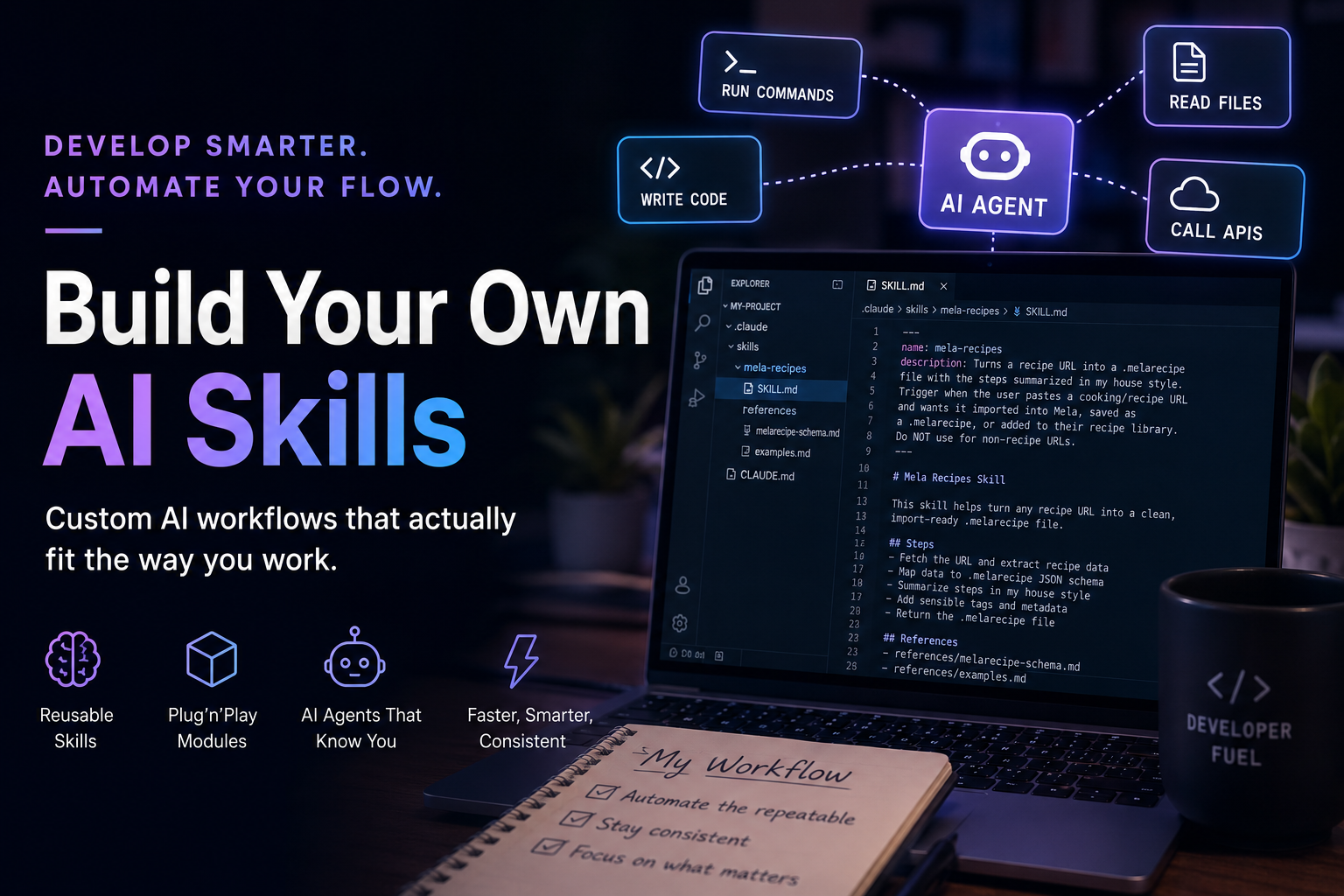
If you've read my piece on Custom AI Skills for developers, this is the same plug'n'play idea: a skill is a folder of instructions your agent loads automatically. The Sightdeck AI skill is the contract between you and the AI. It teaches the agent the rules: create a card before you touch any code, mark it active before you start, flip it to testing while you verify, and only mark it done after a green run.
You drop the skill into your agent's skills directory once, and from then on the agent plays along. That's it. You never have to nudge it.
3. Let it wire itself in
Here's the part I genuinely like. You don't manually configure anything.
The first time you talk to your agent inside a project, the skill sets everything up for you, automatically. It creates the small bit of structure it needs and hooks itself in so it runs on every prompt from then on. It's safe to repeat, and after that you genuinely don't think about plumbing again. Easy peasy. The setup is self-sufficient.
4. Give it your first task
Now the fun part. Just ask the AI to do something, the way you normally would. "Fix the flaky checkout test."
The first thing it does is not write code. It creates a card on your board, and the card shows up instantly.
But before anything runs, the card goes through a little refinement pass first. The AI analyzes what you actually asked for: is this a bug, a change, a new feature? It assigns the right type, estimates the effort in story points, and even suggests a model that fits the job, a cheap one for a typo, a heavyweight for a gnarly refactor. And if it turns out the task is too big to swallow in one bite, the refinement can split it right there into an Epic with proper subtasks (more on that in step 7).
The same thing happens when you let your brain run free and cram several unrelated things into one prompt, "fix the checkout test, oh and also bump the Docker image and update the German snippets". Instead of mashing that into one confused card, the refinement does an auto-split and breaks it into separate, clean cards, one per actual task. You think out loud, it sorts the mess.
So by the time work starts, the card already knows what it is, how big it is, and who should do it.
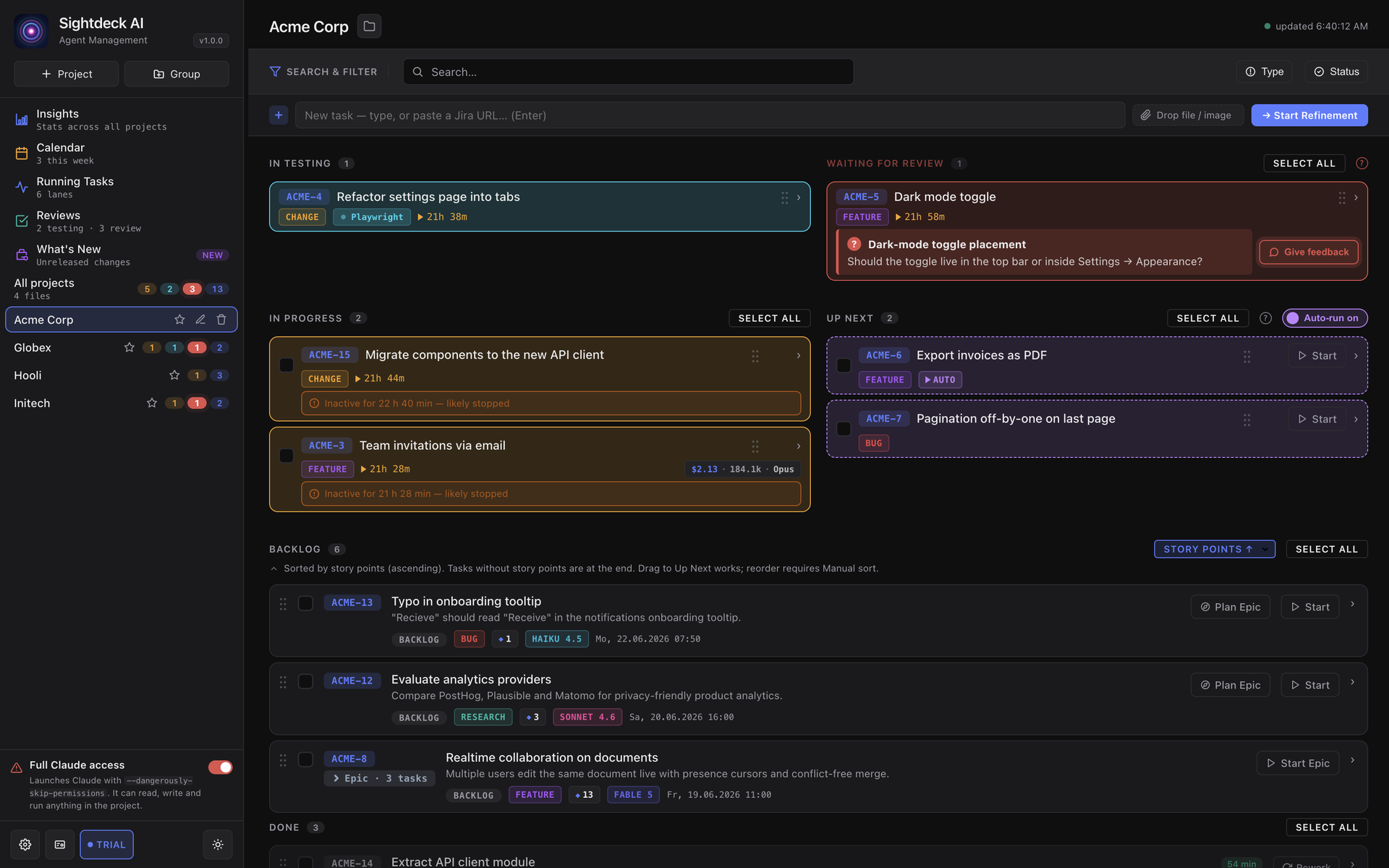
From there it moves on its own through a small set of columns: from waiting, to active, to testing, to done, with a "waiting for feedback" stop in between for when the AI needs a decision from you.
And here is the part I love. When the agent starts running tests, the card flips to testing by itself and shows a little pill telling you which tool is running. When it needs your input, the card jumps into a "Waiting for feedback" lane with a red pulse, so you notice even when the app is in the background. The board is never lying to you. If a card says testing, an agent is literally running tests right now.
5. Run several tasks at once
One task is nice. The real unlock is running a handful at the same time.
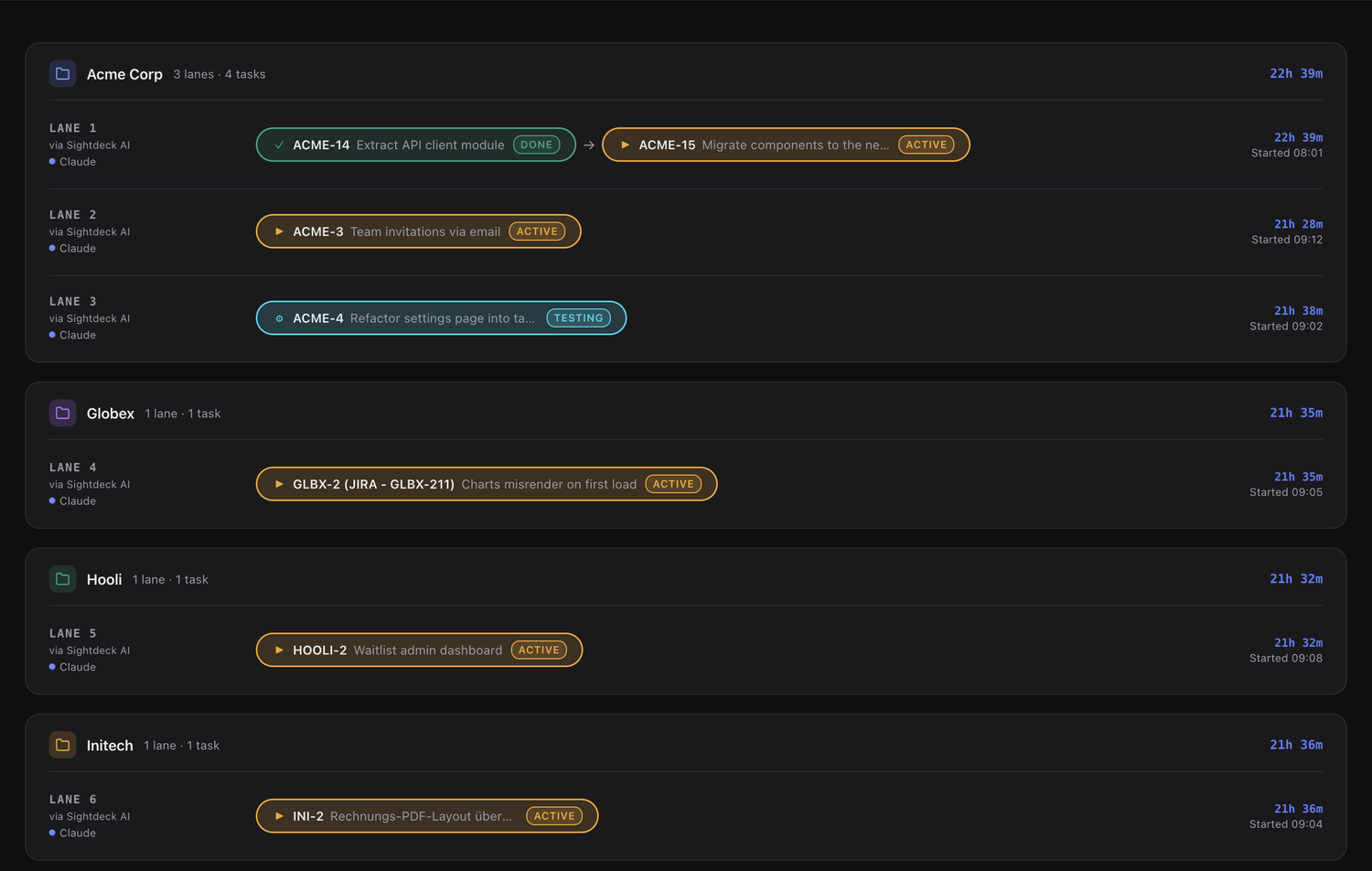
Instead of starting one and waiting, you select a few cards and start them as a run. You get two flavors:
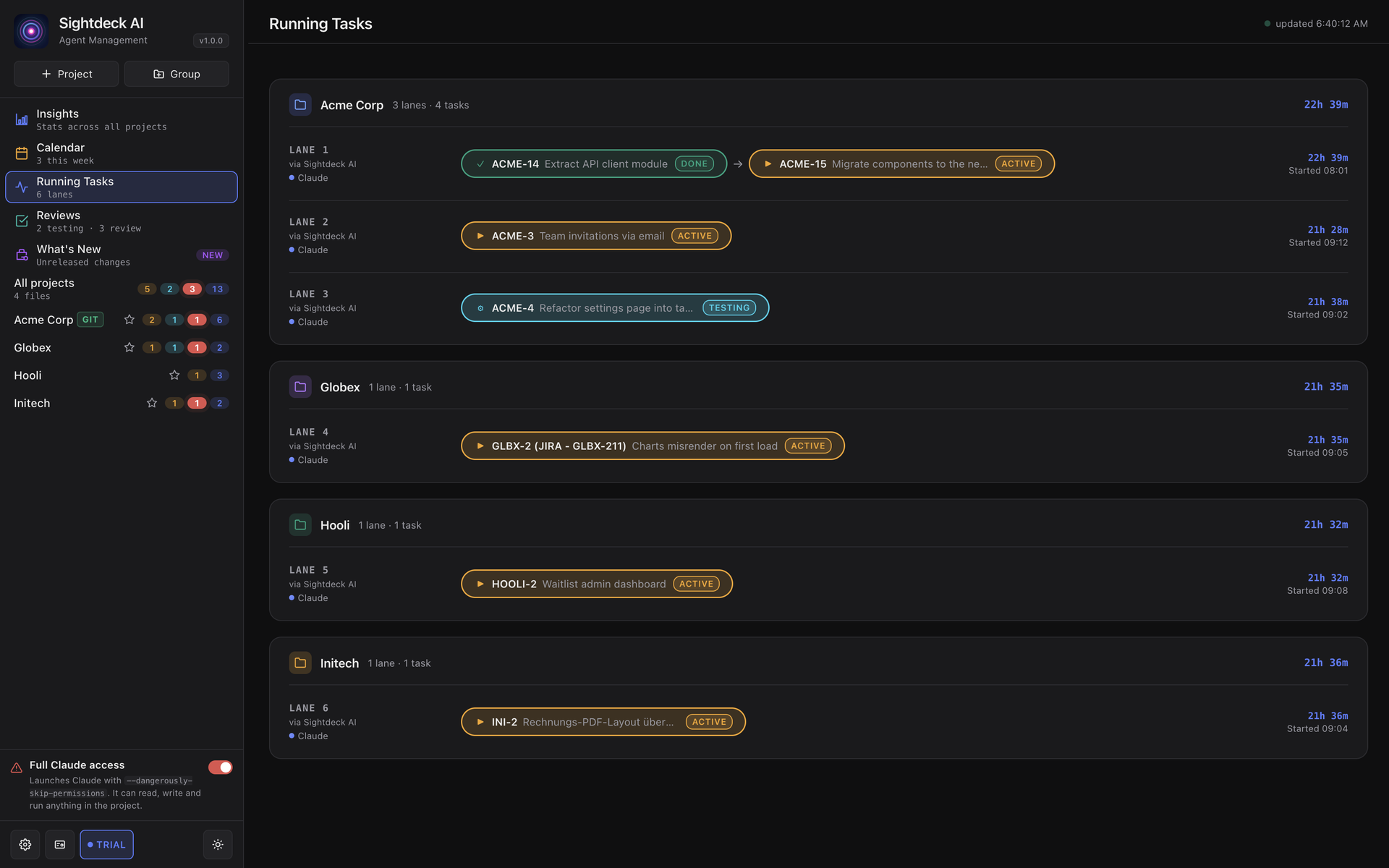
- Parallel — each task gets its own lane and they all run side by side. Three tasks, three lanes, all at once.
- Serial — the tasks share one lane and run in order, one finishing before the next begins.
Parallel is for work that has no business waiting on each other: the flaky test, a translation snippet, a Docker fix. Serial is for when order matters, like "refactor the service, then update the tests that hit it". And you're watching all of it on one board, no scrollback archaeology required.
6. Queue work into "up next" and walk away
Some days I don't even want to press start. I just want to dump work and go make a coffee.
So there's an up next queue. You drag cards into it, and Sightdeck AI picks them up one at a time, runs each through its full lifecycle, and chains straight into the next one when it's done. If a run gets interrupted, it simply restarts. It just keeps going until the queue is empty.
The big difference to a normal run: in up next, the AI doesn't wait for your feedback. There's no "waiting for feedback" stop, no card pulsing red until you come back. When it hits a fork, it just decides on its own and does whatever is best for the project, then moves on. That's the whole point, you're not at the keyboard. You handed it the queue precisely so you could walk away and trust it to make the call.
That's the moment it stops feeling like "using an AI agent" and starts feeling like running a tiny, self-sufficient team.
7. Plan the big ones into an Epic
Not every task is a one-liner. Some are clearly too big to hand to a single agent in one go, and that's usually where an agent quietly goes off the rails.
For those, point the AI at the oversized task and let it plan. It asks you a couple of sharp questions, then splits the work into a set of well-scoped subtasks grouped under one Epic card. Now the big scary task is a board of small, runnable pieces. Each subtask is something an agent can actually finish without losing the plot, and the Epic on top keeps the goal and rationale in one place. Decompose first, orchestrate second.
And there's a lot more
The seven steps above are just the core loop. Under the hood there's a whole pile of features I haven't even touched here: a Jira integration so your board talks to the tracker your team already lives in, a caveman mode that squeezes the agent's chatter down to save tokens, live token costs per task so you actually see what a run costs you, daily stats to keep an eye on usage over time, and plenty more. I'll dig into those in their own posts, but know that the board you just set up is only scratching the surface.
Conclusion
That's the whole setup. A desktop app that shows the board, and a skill that keeps the AI honest. No database, no cloud, no config marathon.
The first time you throw five tasks onto the board and watch the lanes light up while you sip your coffee, the old single-window, one-task-at-a-time workflow is going to feel painfully slow. That was the whole point.
Give it a try, and if you have questions, ideas or feedback, just let me know.
Links:
- Read more about Custom AI Skills for developers
- https://sightdeck.app